
Chapter 5 · 5.2
Creating a public link: viewing, editing, password, expiration date and download limit
Watch it in a short video
With a public link, you share a file or folder with anyone, even people without Nextcloud. Whoever has the link can open it in their browser. You decide whether the other person can only view it or also edit it, and you can set a password and an expiration date.
Creating a link
- Right-click the file or folder, choose Details and open the Share tab.
- Under External shares, click the plus icon next to Create public link.
- The link is created and appears as Share link in the list. Use the copy button (1) to copy it to your clipboard, then paste it into an email, WhatsApp message or chat. The three dots (2) open the link's menu.

The link settings
Below the link's name, you'll see what the recipient is allowed to do, for example View only. Click it to quickly change this. In the menu with the three dots, you'll find:

- Customise link: all the link's settings, see below.
- Generate QR code: a QR code for the link, handy on a poster or flyer.
- Add another link: a second link with different settings.
- Unshare: revoke the link.
Choose Customise link for the settings:
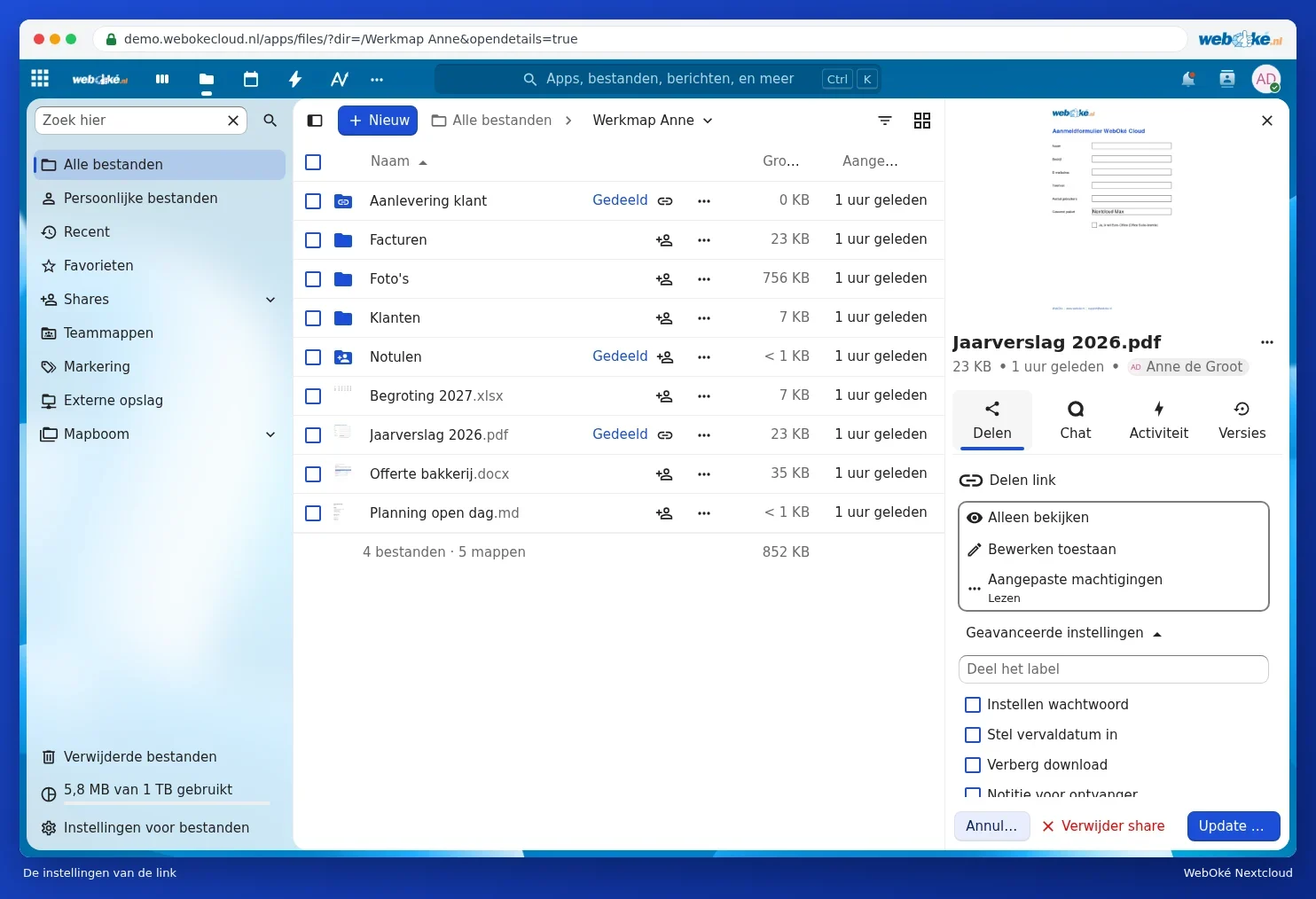
At the top, you choose what the recipient can do: View only, Allow editing or Custom permissions. For a link to a folder, you can also allow the other person to only drop off files, see Having files sent to you: file drop and file request. Then expand Advanced settings:

- Share label: a name for the link, handy if you have multiple links.
- Set password (1): put a password on the link. Send the password through a different channel than the link itself, for example the link by email and the password by text message.
- Set expiration date (2): after this date, the link stops working.
- Hide download (3): the recipient can view the file but won't see a download button. This doesn't really stop anything though, a screenshot is always possible.
- Note for recipient (4): a short explanation that the recipient sees alongside the link.
- Limit downloads (5): the link stops working after the file has been downloaded a set number of times.
Click Update share (6) to save your changes. Use Delete share to revoke the link.
What does the recipient see?
The recipient opens the link in their browser. A PDF or photo opens straight away in the browser; for a folder, they see the files in your WebOké Nextcloud's branding. Depending on the permissions, they can view, download or edit. They don't need an account.

Multiple links and revoking links
You can create multiple links for the same file, for example a separate link per customer, each with its own password or expiration date. To revoke a link, use Unshare in the link's menu. The link then stops working immediately.
Please note: a link without a password works for anyone who has it, even if it gets forwarded. If you're sharing sensitive files, always use a password and an expiration date.
To see all the links you've created, go to Files under Shares, see Shared with you: overview, declining and re-sharing.