
Chapter 9 · 9.7
Contacts: creating, groups, importing and exporting
In the Contacts app, you keep the details of your customers, suppliers, family and friends. Your contacts are also available on your phone and in your email program (see Calendar and contacts on the iPhone and iPad to Calendar and contacts in Thunderbird), and the Calendar and Mail use them to suggest names.

| No. | Part | What do you use it for? |
|---|---|---|
| 1 | New contact | Add a contact. |
| 2 | Address books | Your address books. Contacts is your own address book; Accounts automatically contains all users of your Nextcloud. |
| 3 | Contact groups | Groups such as Customers or Family. A contact can be in several groups. |
| 4 | Search field | Search by name, email address, organisation or phone number. |
| 5 | Edit | Change the open contact. |
Creating a contact
- Click New contact.
- Type the name (1). Then fill in the organisation, phone numbers, email addresses and address. Use the plus sign after a field to add another phone number or email address; use the drop-down menu in front of it to choose, for example, Work or Home.
- Click Save (2).

At the bottom, you'll find Add more info: use this to add fields such as a birthday, a website or notes. If you fill in a birthday, it automatically appears in the Birthdays calendar in your Calendar.
Changing or deleting a contact
Click the contact in the list and then click Edit. Make the changes you want, choose which groups it belongs to under Contact groups, and click Save. You can delete a contact from the menu with the three dots in the top right corner of the contact.

Contact groups
You create a group using the plus sign next to Contact groups. To add someone to a group, do this while editing the contact, in the Contact groups field. Click a group (1) to see only those people.

You can invite a contact group to an appointment in the Calendar (see Inviting people to an appointment). Do you work with the same colleagues on files and conversations? Then it's better to use a team (see Creating teams and sharing a folder with your whole team).
Multiple contacts at once
Click the round photo or the letters in front of a name to select the contact. Buttons appear at the top of the list to delete the selected contacts, add them to a group, or move them to another address book. If you've selected exactly two contacts, you can also merge them. This is handy for duplicates, see Cleaning up duplicate contacts after transferring.
Importing: contacts from Google, iCloud or Outlook
- Export your contacts in the old program as a vCard (.vcf). In Google Contacts, this is called exporting as vCard; in iCloud, select all contacts and choose Export vCard.
- In Contacts, click Contacts settings at the bottom left.
- Click Import contacts (1). Choose whether the file is on your computer or already in your Nextcloud, and which address book it should go into.
- Afterwards, you'll see how many contacts have been imported.
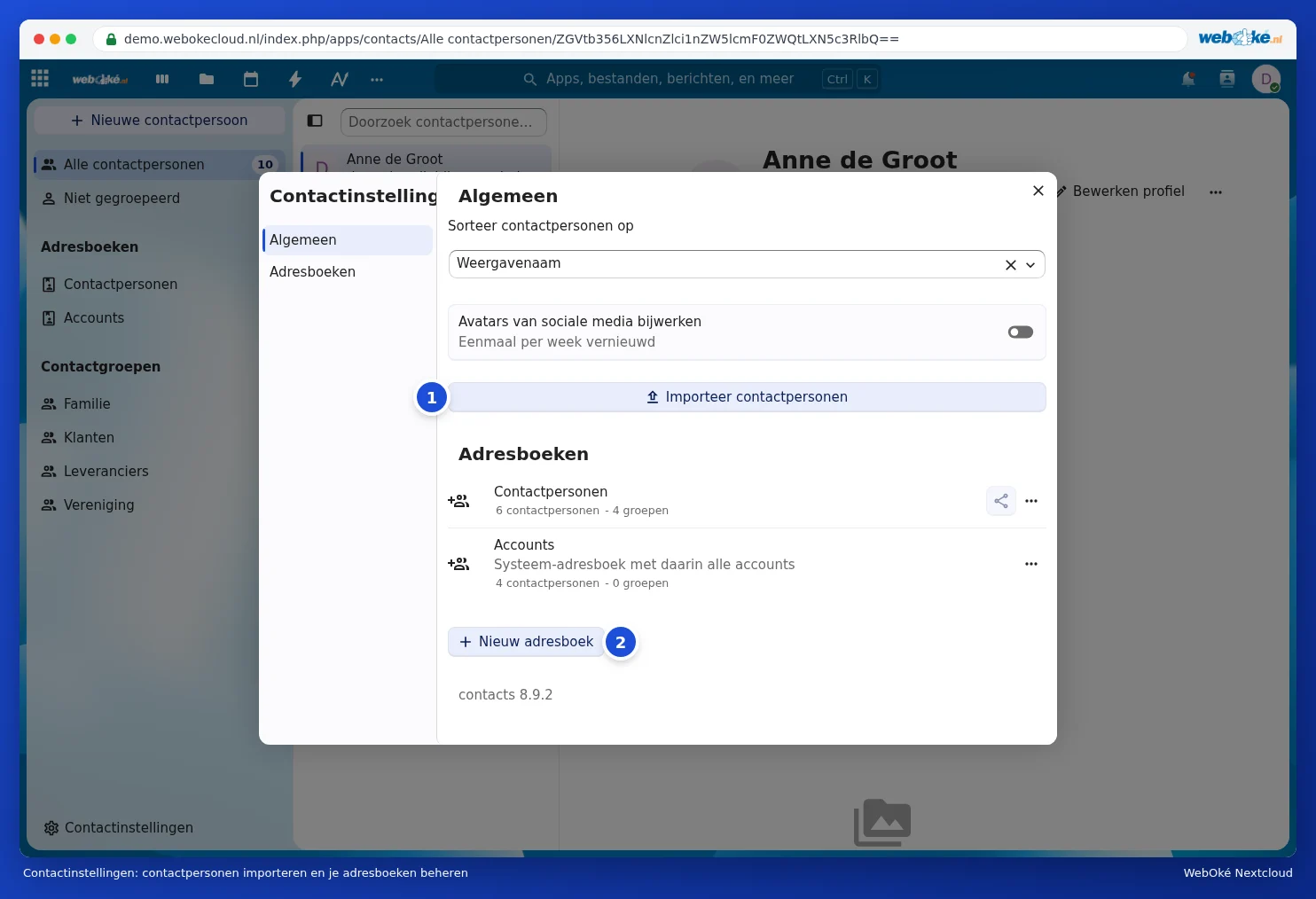
Please note: only import a file once. Importing it twice creates duplicate contacts. Not sure? First create a new, empty address book with New address book (2) and import into that. Contacts reads vCard 3.0 and 4.0.
Exporting and making a backup
In Contacts settings, under Address books, you'll find each address book with a menu (the three dots). Choose Download there to save the entire address book as a .vcf file. With Copy link, you get the address book's address for a program that works with CardDAV. Use the share button to share an address book with someone in your Nextcloud.
