
Chapter 17 · 17.2
A drop-down list that depends on another drop-down list
Watch it in a short video
Picture an order form where you choose a category first and then only the varieties in that category: choose Tulips and you only see Strong Gold and Purple Prince, no roses. This is called a dependent drop-down list. A regular drop-down list is covered in Data validation and drop-down lists; here you build two that work together. It uses named ranges and the INDIRECT function.
As an example, we use the florist Bloemisterij Het Zonnetje. On a worksheet called Lists, the categories are headings with the varieties below them:
| A | B | C | D | |
|---|---|---|---|---|
| 1 | Roses | Tulips | Seasonal | Dried bouquet |
| 2 | Avalanche | Strong Gold | Peony | Lavender |
| 3 | Red Naomi | Purple Prince | Ranunculus | Strawflower |
| 4 | Pink Floyd | Sunflower |
Step 1: give each list of varieties a name
- Select the varieties under Roses, without the heading: A2:A4.
- On the Formula tab, click the arrow next to Named ranges and choose Define name.
- Under Name, type exactly the text of the heading: Roses. Leave Scope set to Workbook and click OK.
- Do the same for Tulips (B2:B3) and Seasonal (C2:C4).
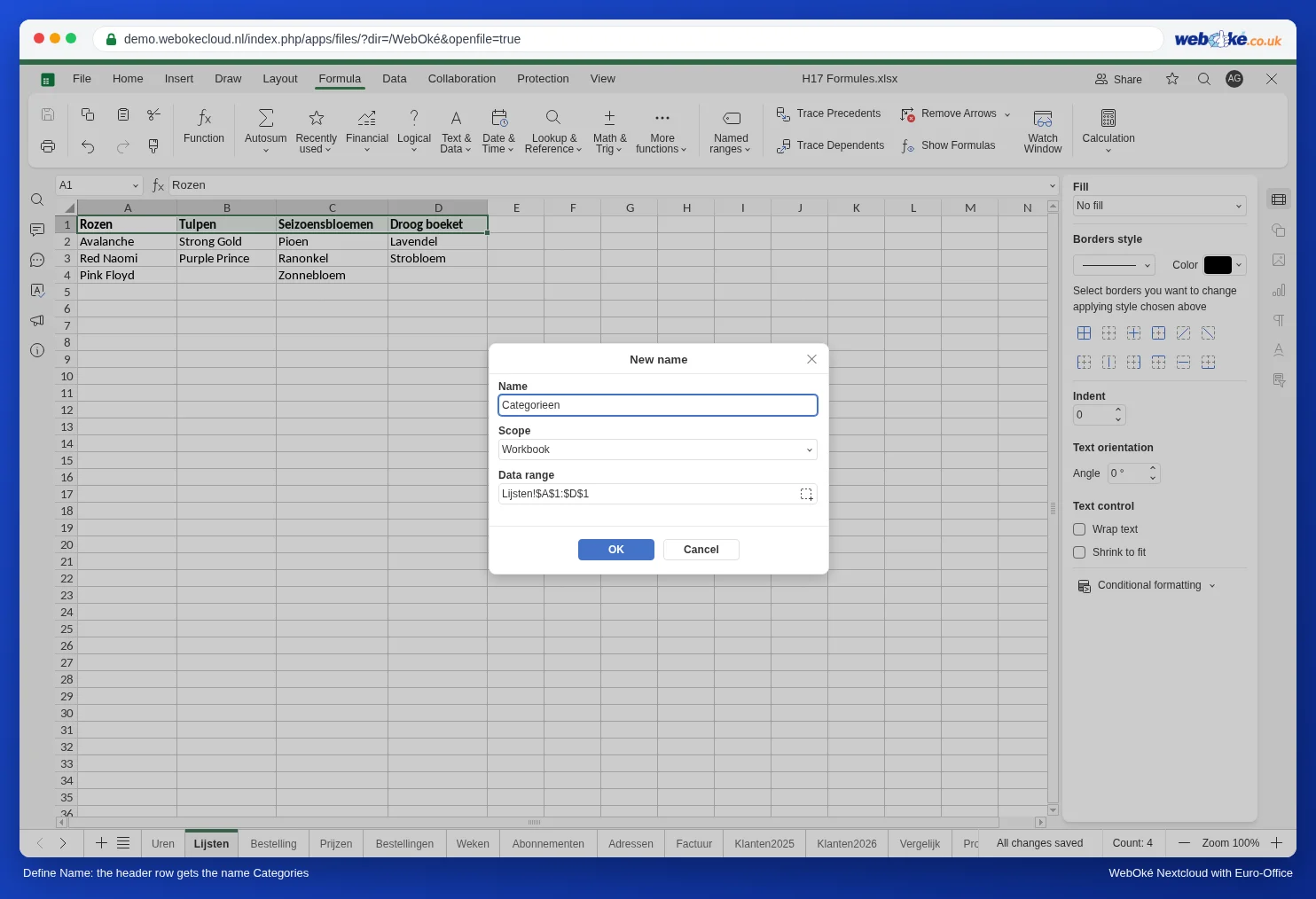
A name can't contain a space. So for "Dried bouquet" you use the name Dried_bouquet, with an underscore. You deal with that in step 3.
Step 2: give the headings a name too
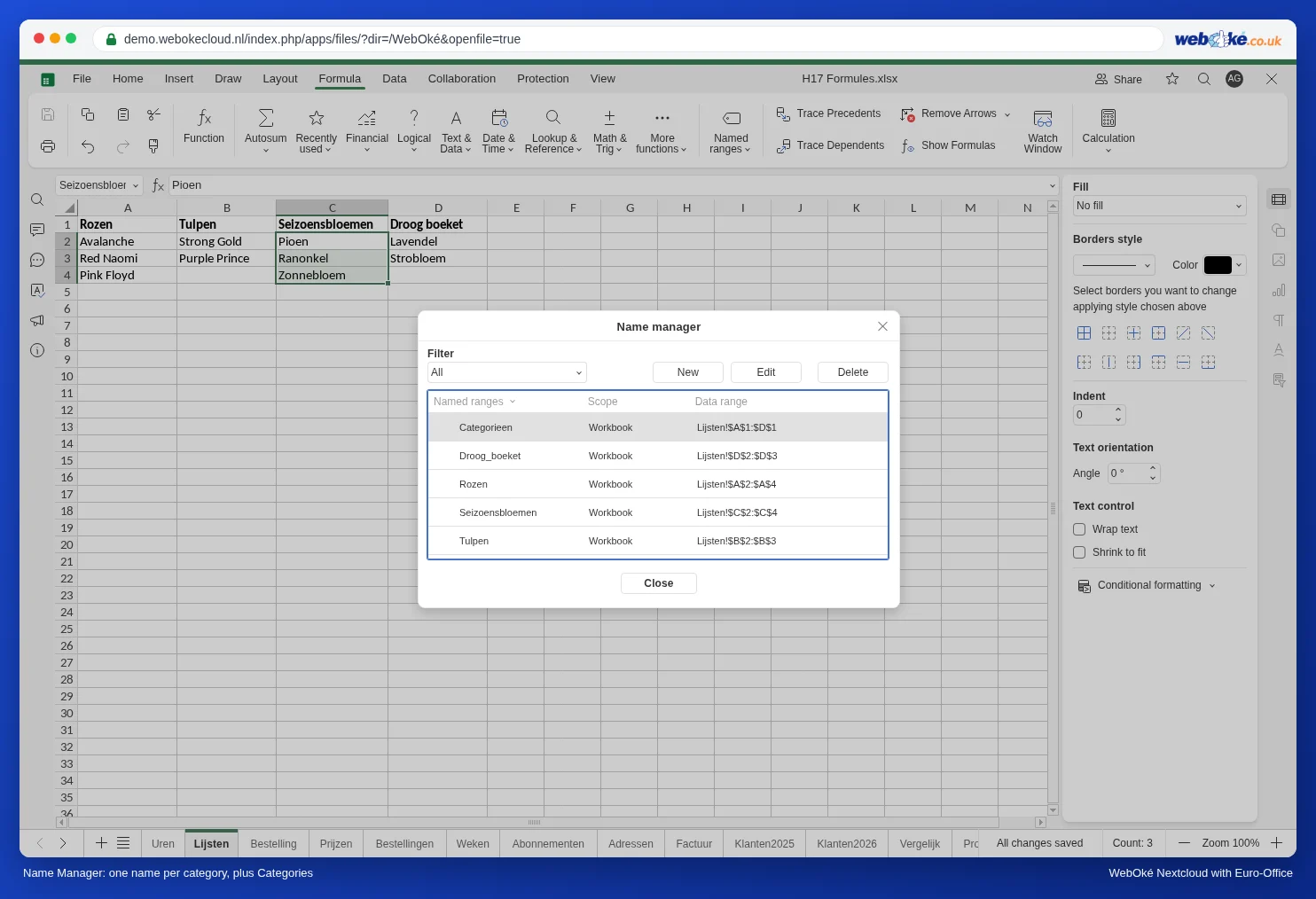
Select A1:D1 and, in the same way, give it the name Categories. Then check everything using the arrow next to Named ranges and Name manager.
Step 3: the two drop-down lists
- Go to the order sheet and select the cells for the category, for example B2:B50.
- On the Data tab, click Data Validation. Under Allow, choose List, under Source type =Categories and click OK.
- Select the cells for the variety, C2:C50, and open Data Validation again.
- Choose List and under Source type: =INDIRECT(SUBSTITUTE(B2," ","_"))
- Click OK.
Tip: choose a category in B2 first, for example Tulips, and only then create the second drop-down list. If B2 is still empty, Euro-Office tells you when you click OK that the list source must be a delimited list or a reference to a single row or column. If you get that message, close it, choose a category in B2 and create the drop-down list in C2:C50 again.
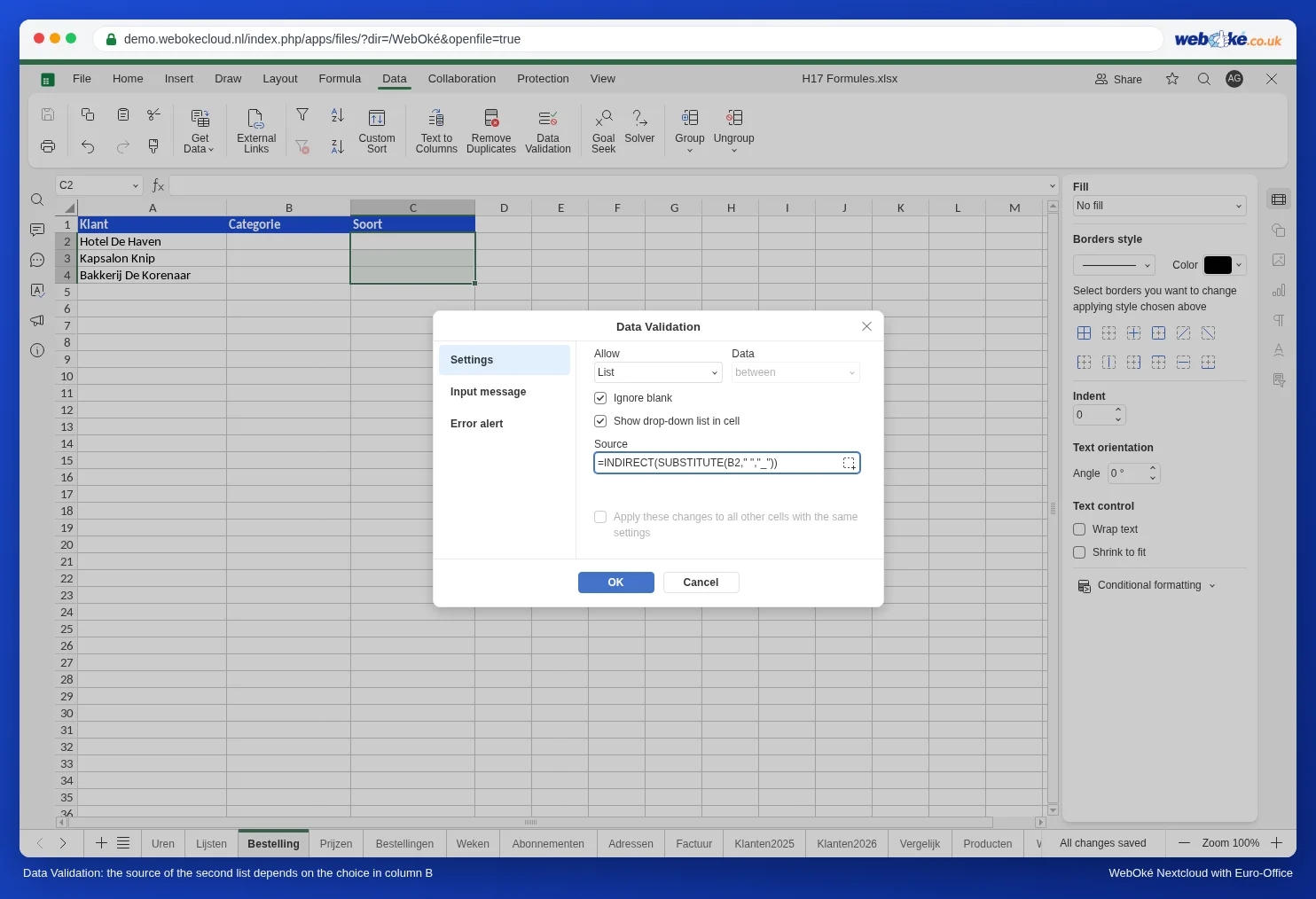
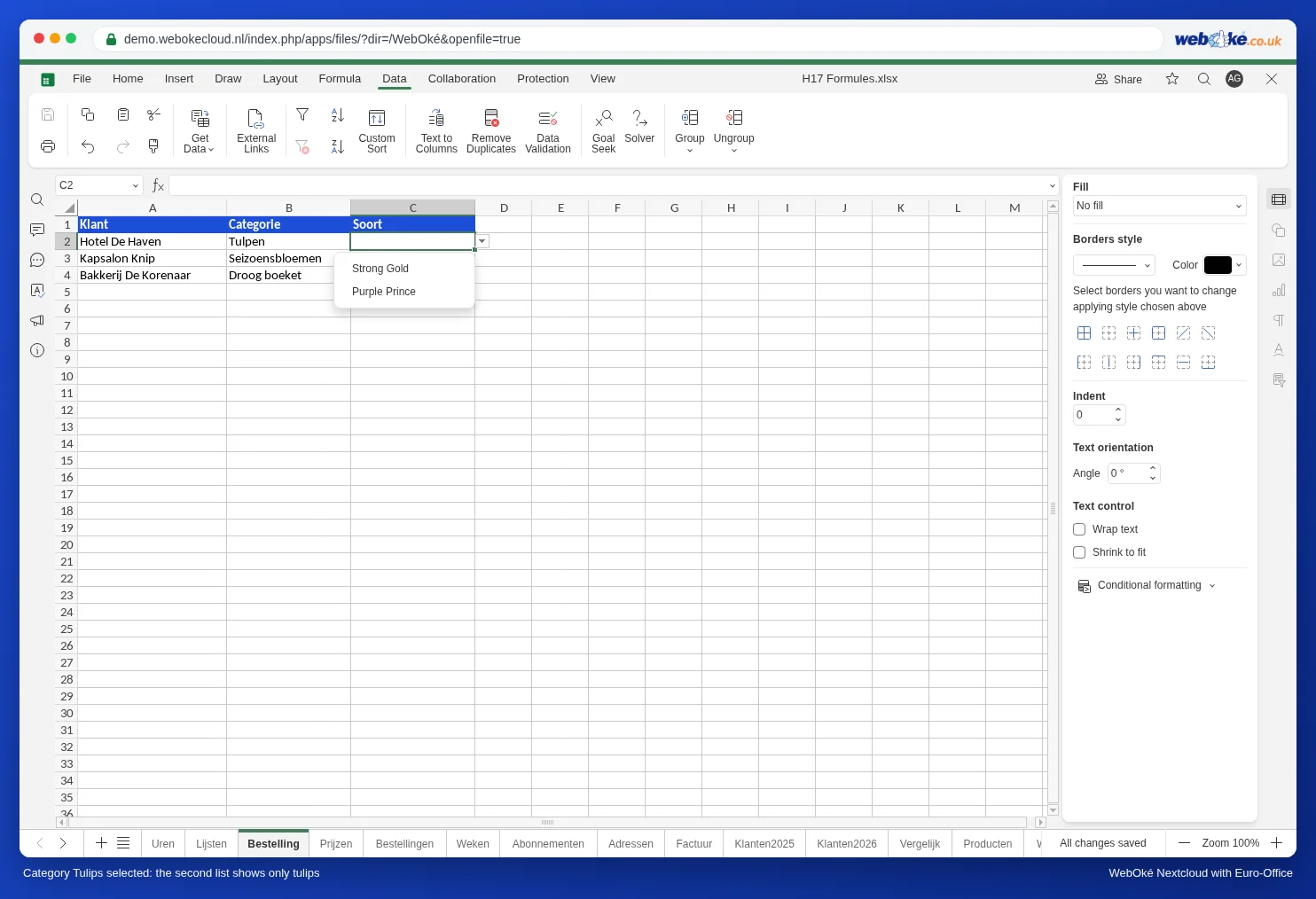
How does it work? If B2 contains Tulips, INDIRECT turns that text into a reference to the name Tulips, and the drop-down list shows B2:B3 of the Lists worksheet. SUBSTITUTE first replaces a space with an underscore, so "Dried bouquet" finds the name Dried_bouquet. Use B2 without dollar signs: that way each row looks at its own category.
A third level
Want people to choose a colour after the variety as well? Create a list of colours for each variety, give it the name of the variety (for example Red_Naomi), and in column D use =INDIRECT(SUBSTITUTE(C2," ","_")) as the source.
Pitfalls
- The heading appears in the list: you included the heading in the named range. Adjust the range in Name manager.
- The list stays empty: the category text and the name don't match. Watch out for spaces, hyphens and a name that starts with a number; that isn't allowed in a name.
- An old choice stays put: if you later choose a different category in B2, the variety in C2 stays, even if it no longer fits. Clear C2 or choose again.
- A new variety isn't included: if you type a fourth rose under Pink Floyd, it falls outside the name Roses (A2:A4). Adjust the range in Name manager.