
Chapter 4 · 4.4
Bullets and numbering
A list makes text clear and organised. Euro-Office offers bulleted lists, numbered lists and multilevel lists.

Creating a list
- Select the lines that should become a list. You can also click the button first and then start typing.
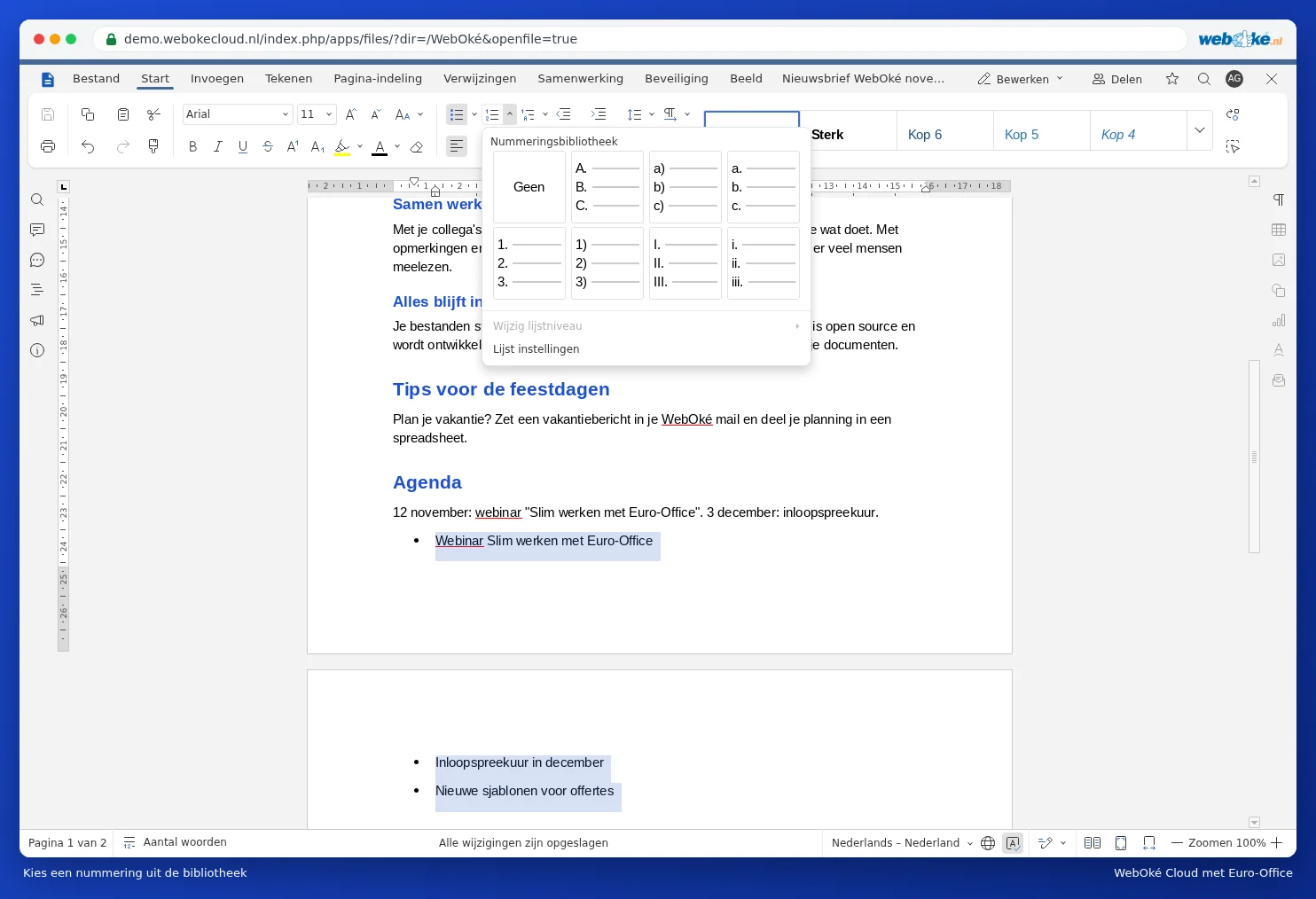
- On the Home tab, click Bullets (1) for a bulleted list, or Numbering (2) for a numbered list.
- At the end of a line, press Enter for the next item. Press Enter twice to stop the list.
Choosing a different numbering style or bullet symbol
Click the arrow next to the button. You can then choose from the library: numbers, letters, Roman numerals or other bullet symbols. Use List settings to set your own symbol, colour and indentation.
Levels in a list
- At the start of an item, press Tab to move it one level deeper.
- Press Shift + Tab to move it back one level.
- Use the Multilevel list button to choose a fixed numbering style such as 1, 1.1, 1.1.1.
Tip: doesn't the numbering start at 1 where you want it to? Right click the number. In the menu, you can let the numbering start again at 1 or continue from the previous list, and set the starting value.