
Chapter 15 · 15.7
Opening CSV files with semicolons and strange characters correctly
Exports from webshops, banks and membership systems are almost always CSV files. We regularly hear two complaints: everything ends up in one column, or strange characters appear, such as ë instead of ë. You can fix both when opening the file.
Why does this go wrong?
- One column: some programmes separate fields with a semicolon, others with a comma. If the spreadsheet picks the wrong character, everything ends up in column A.
- Strange characters: the file is saved in a different encoding than the spreadsheet expects. Older Windows programmes often use Windows-1252 (Western European), newer ones use UTF-8.
Note: clicking opens the text editor
If you click a CSV file in your WebOké Nextcloud, Nextcloud opens it as plain text in the text editor, not as a spreadsheet. To turn it into a proper table, import the CSV file into a spreadsheet instead.
How to import it correctly
- Create a new, empty spreadsheet (or open the spreadsheet where the data needs to go).
- Go to the Data tab, click Get Data and choose From Local TXT/CSV. Select the CSV file on your computer. If the file is online, choose From TXT/CSV Web Address instead.
- The Text Import window opens. Check the Preview to see if the letters look correct. If you see strange characters where é, ë and ô should be, choose a different option under Encoding. For exports from older Windows programmes, this is usually Western European (Windows); for newer ones, it's Unicode (UTF-8).
- Under Delimiter, choose Semicolon or Comma until the preview shows neat columns. Euro-Office often detects the delimiter automatically.
- Under Choose where to put the data, select the top left cell, for example $A$1, and click OK.
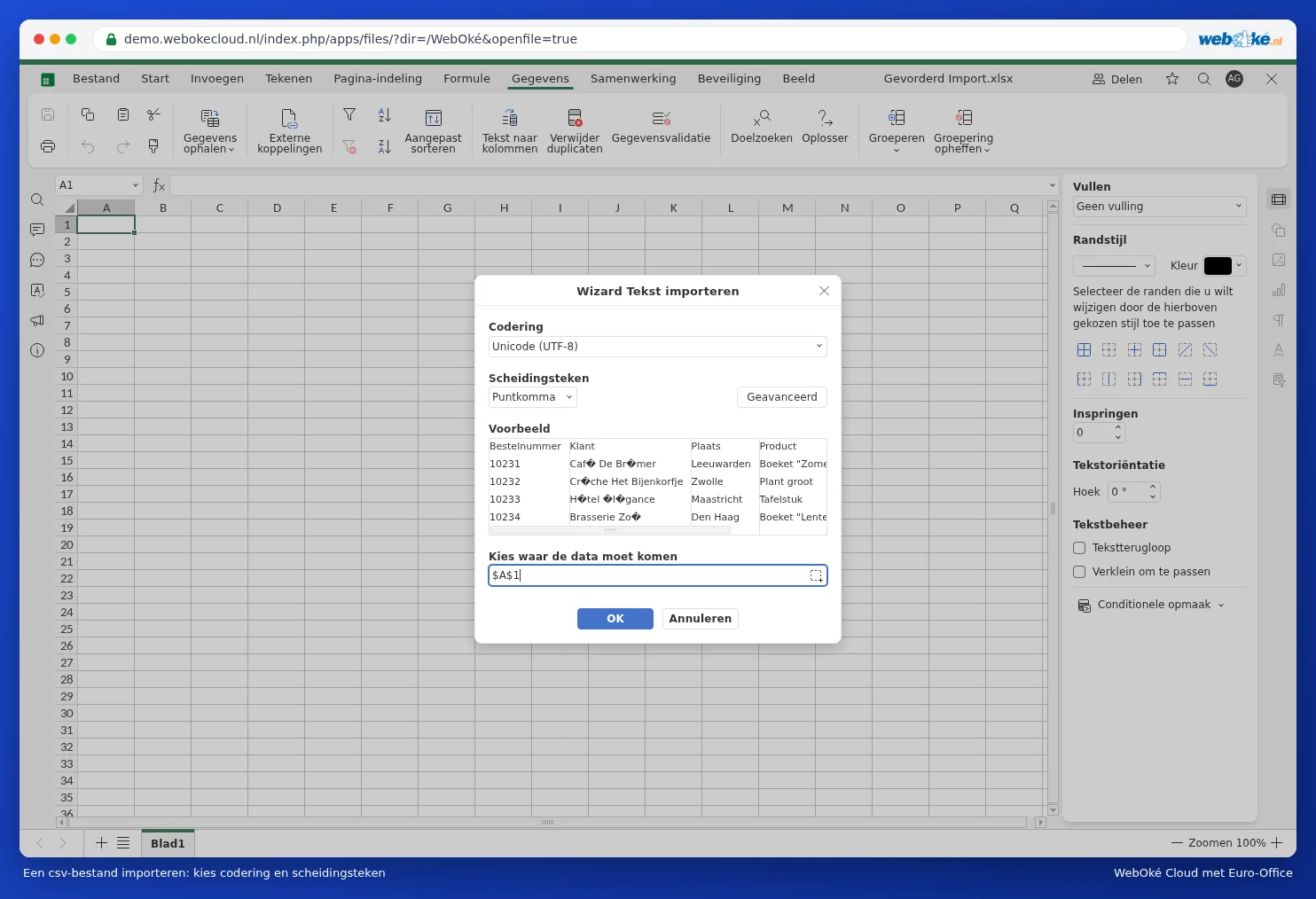


Use Advanced to set the decimal separator and the thousands separator. For amounts formatted the Dutch way (1.249,00), choose a comma as the decimal separator and a period for thousands. See also Importing and exporting CSV files.
Pitfalls
- Once opened, you're working in a CSV file. A CSV doesn't store formatting, formulas or extra sheets. If you want to keep working on it, save a copy as XLSX using File, Save copy as.
- Leading zeros (postcodes, phone numbers) and long numbers such as an IBAN can get lost when opening the file. See Keeping the leading zero in a phone number or postcode.
- Dates may come in as text. See Dates that come in as text or have day and month swapped.