
Chapter 16 · 16.6
Freeing up space: cleaning up old backups
Backups stored in your own package take up storage space. If your package fills up, your website and email will stop working properly. So check now and then for old backups that can be removed.
Where are backups stored in your package?
| Type | Where? | Cleaning up |
|---|---|---|
| Backups from Backup and Restore | The backups folder in your package | With File Manager (see below) |
| Installatron backups | In your package, managed by Installatron | In Installatron (see Making and restoring backups in Installatron) |
| Backups from plugins, such as a backup plugin in WordPress | Usually in your website's folder, for example wp-content | In the plugin itself, or with File Manager |
| WebOké Backups | On separate storage servers | Not necessary: these don't count towards your storage and are automatically cleaned up after 30 days |
Deleting a backup with File Manager
- In the menu, under System Info & Files, click File Manager (see Opening File Manager: the directories in your package).
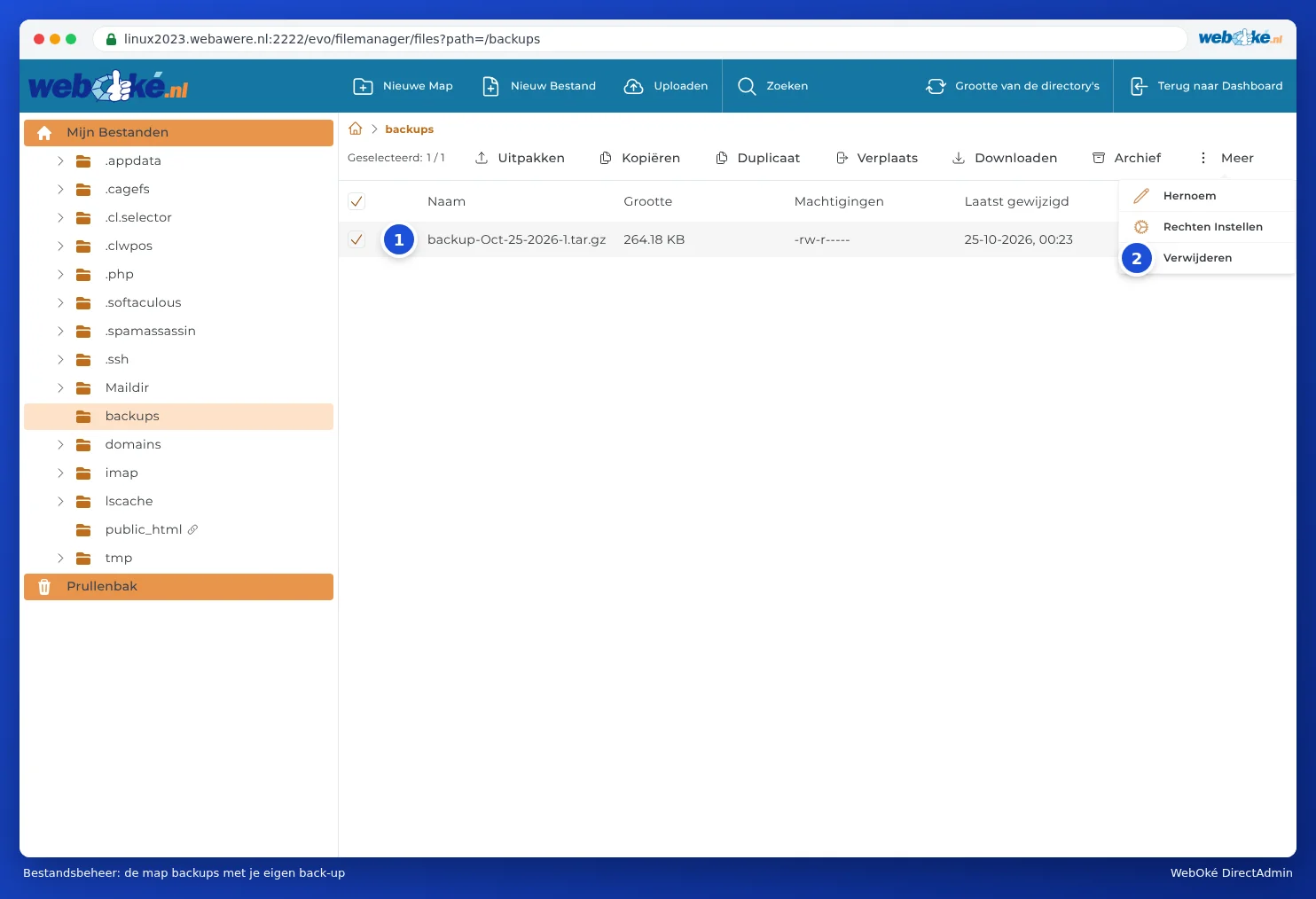
- Open the backups folder.
- Tick the backup file you want to remove (1).
- In the bar at the top, click More and choose Delete (2).
- A Remove item window opens. If Move To Trash is ticked, the file first goes to the trash. If you untick it, the file is deleted permanently straight away. Click DELETE.
- Did the file go to the trash? Then open Trash at the bottom left, tick the file and choose Delete permanently. As long as it's in the trash, it still counts towards your storage.
Tip: Want to keep the backup after all? Download it first (see Backup and Restore: creating your own backup in DirectAdmin) and then remove it from the server.
Installatron backups
Installatron can create a backup of your website with every automatic update. For a website with lots of photos, this can add up quickly. In Installatron, you can set how many backups are kept, and delete old backups (see Making and restoring backups in Installatron). Since WebOké Backups already creates a backup every night, you can safely keep the number of Installatron backups low.
Why doesn't the space show up straight away?
Your package usage isn't recalculated every second. After cleaning up, it may take a little while before you see the free space reflected on the dashboard. If you still see too little space after a day, read Storage full: where's the space going?.