
Securing your VPS: the first five minutes
A new server on the internet is scanned within minutes by bots trying passwords. These steps keep you well ahead of them. Run them as root.
1. Update everything and enable automatic updates
- Ubuntu and Debian:
apt update && apt upgrade -y, thenapt install -y unattended-upgradesanddpkg-reconfigure -plow unattended-upgrades. - AlmaLinux and Rocky Linux:
dnf upgrade -y, thendnf install -y dnf-automaticandsystemctl enable --now dnf-automatic-install.timer.
2. Log in with a key, passwords off
First put your SSH key on the server (see Logging in to your VPS with SSH) and test that logging in with the key works. Then set in /etc/ssh/sshd_config:
PasswordAuthentication no
and restart SSH with systemctl restart ssh (AlmaLinux and Rocky: systemctl restart sshd). Keep your current session open until you have checked in a second window that you can still get in.
3. A firewall
- Ubuntu and Debian:
apt install -y ufw, thenufw allow OpenSSH, optionallyufw allow 80,443/tcpfor a website, andufw enable. - AlmaLinux and Rocky Linux: firewalld is already there. For example
firewall-cmd --permanent --add-service=http --add-service=httpsandfirewall-cmd --reload.
Always keep SSH (port 22) open, or you will lock yourself out.
4. Fail2ban against guessing
apt install -y fail2ban or dnf install -y epel-release && dnf install -y fail2ban, then systemctl enable --now fail2ban. By default it blocks IP addresses that try wrong passwords too often.
5. A snapshot as a safety net
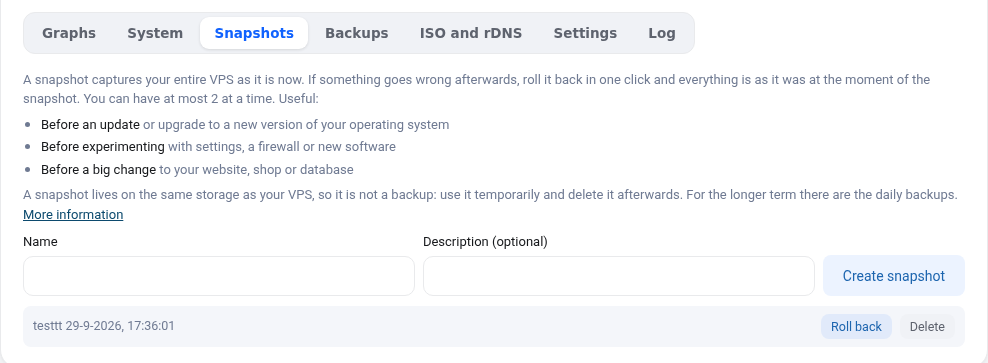
Take a snapshot in your VPS screen before making big changes. If something goes wrong, roll back in one click. See Snapshots and backups of your VPS.
Keep the qemu-guest-agent
The qemu-guest-agent program is installed by default. It lets you set a new root password from the VPS screen and shows disk usage. Do not remove it.