
Resource limit reached / 503 / PHP X-Ray
Each of our hosting packages has a different amount of computing power available.
Reaching these limits can affect your website in various ways: you may get a 503 (server is temporarily busy) message when you visit your website, or your site may load more slowly than you are used to.
In this article we explain how to troubleshoot your website and find the cause of the problem using our software.
If you notice that your site is slow or you get a 503 message when you visit it, log in to the DirectAdmin control panel; this article explains how: https://mijn.weboke.nl/kennisbank/46
- In the DirectAdmin control panel, click at the bottom on resource usage
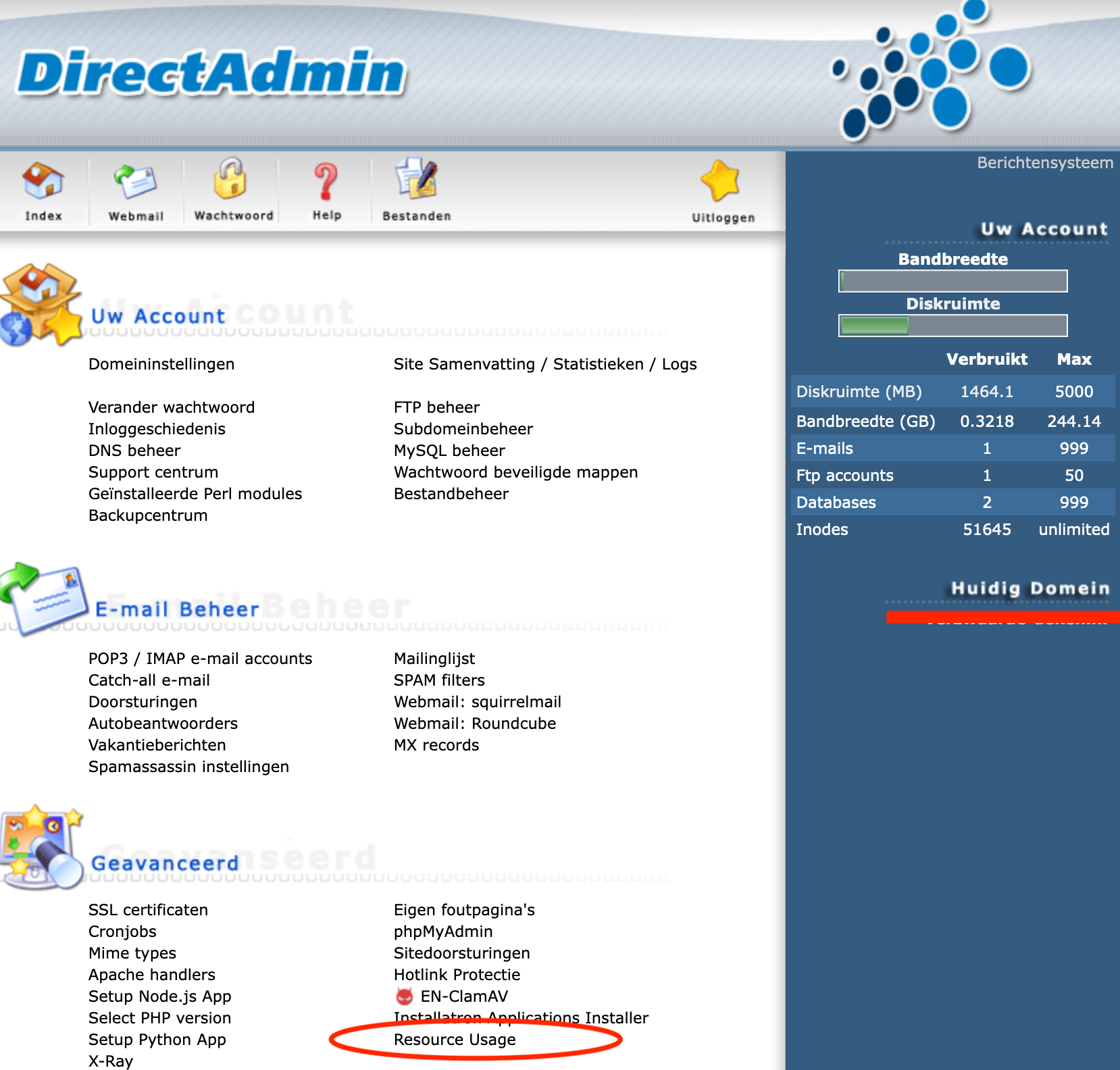
- If computing power limits have been reached within the hosting account, you will see the message below. Click Details. If you do not see this message, reaching the limits of your hosting package is not the main cause of the slowness; in that case you can skip the next two steps and go on to the section about PHP X-Ray.
- On the next screen you will see the statistics of the various computing power modules, such as CPU usage, RAM usage and I/O usage.
If yours looks similar to the screenshot below, it means various parts of the website are preventing the site from loading quickly with the computing power available in the current package.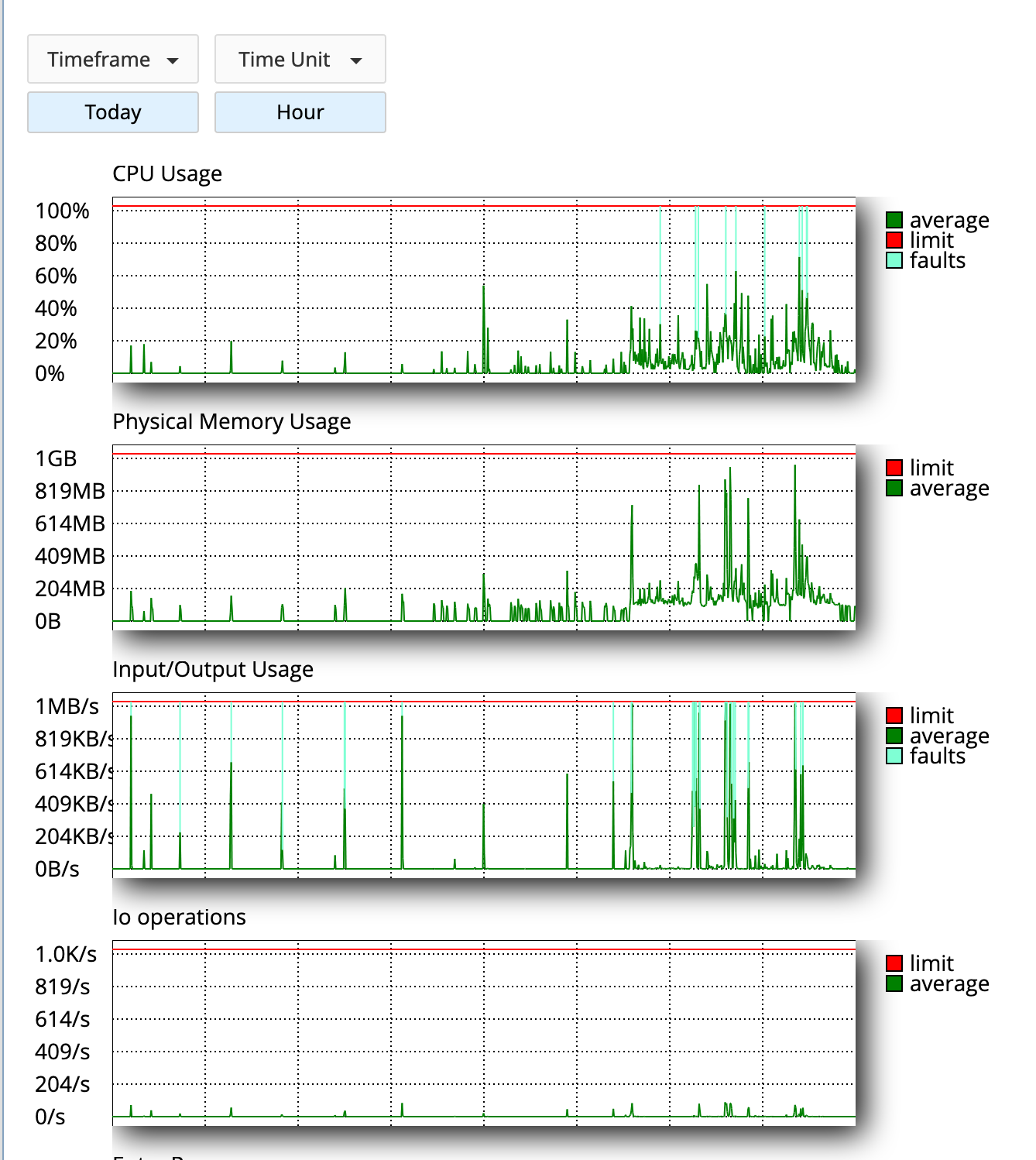
PHP X-Ray
To give you insight into what may be causing the slowness, we use PHP X-Ray.
With PHP X-Ray you can monitor your website when a visitor requests it, and then see in detail which parts of the site took longest to load.
Below we explain how to set up such a monitor and how to get useful information from the report.
- On the DirectAdmin main screen, click PHP X-Ray. 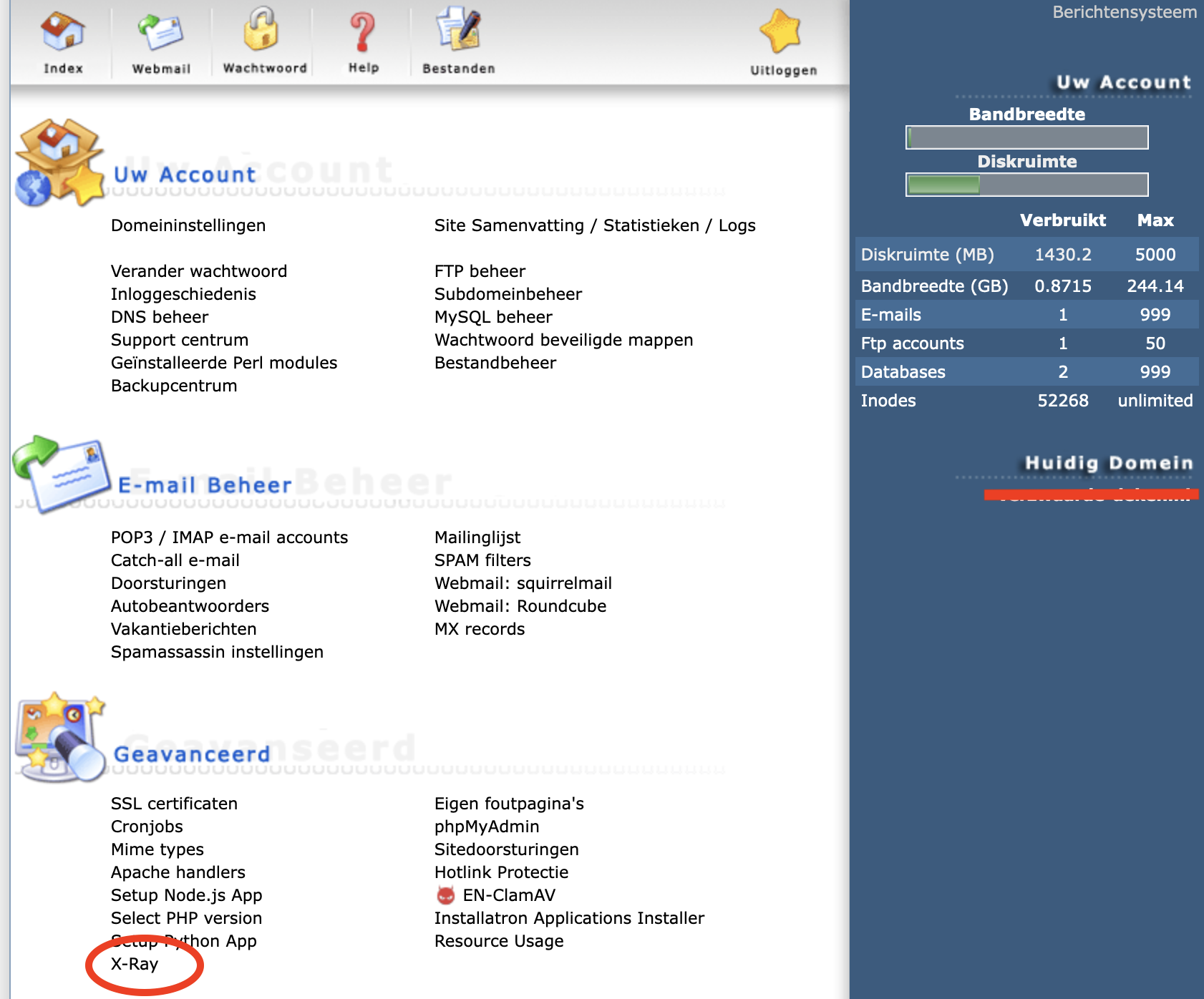
- Click Start tracing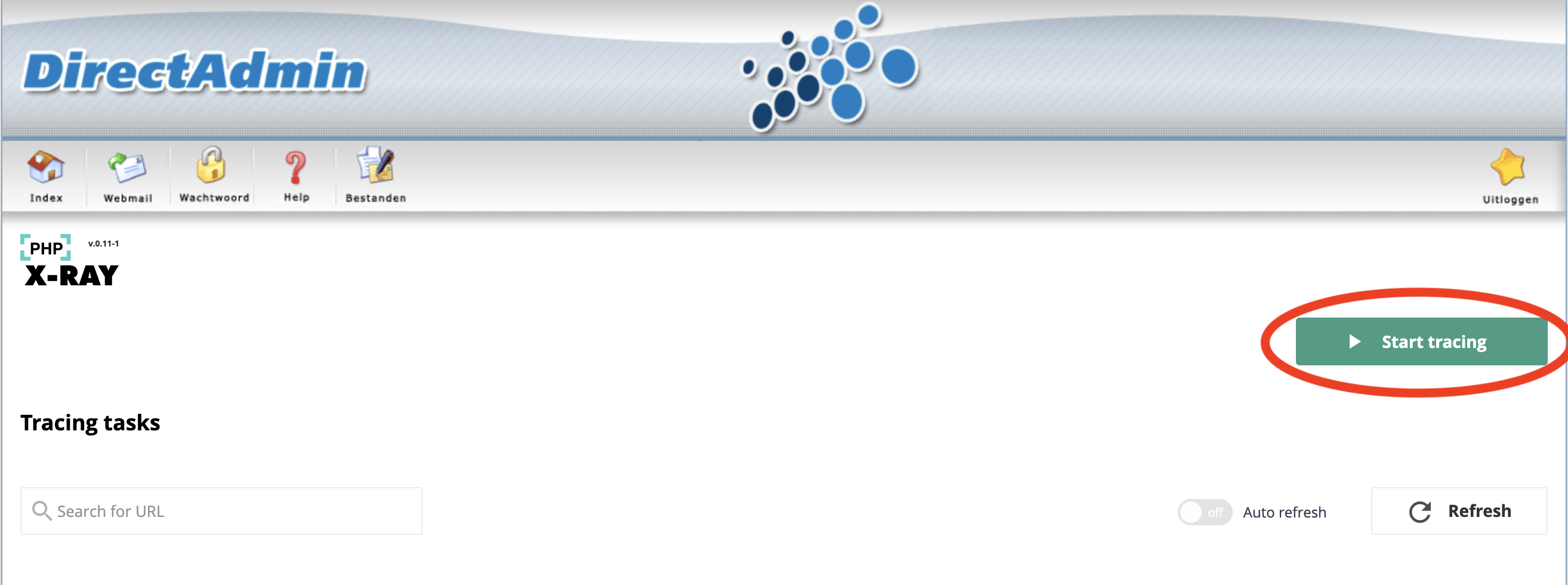
- In the pop-up, choose the domain name you want to monitor from the drop-down menu on the left. In the right-hand field, under 'specify mask', you can enter a slash (/).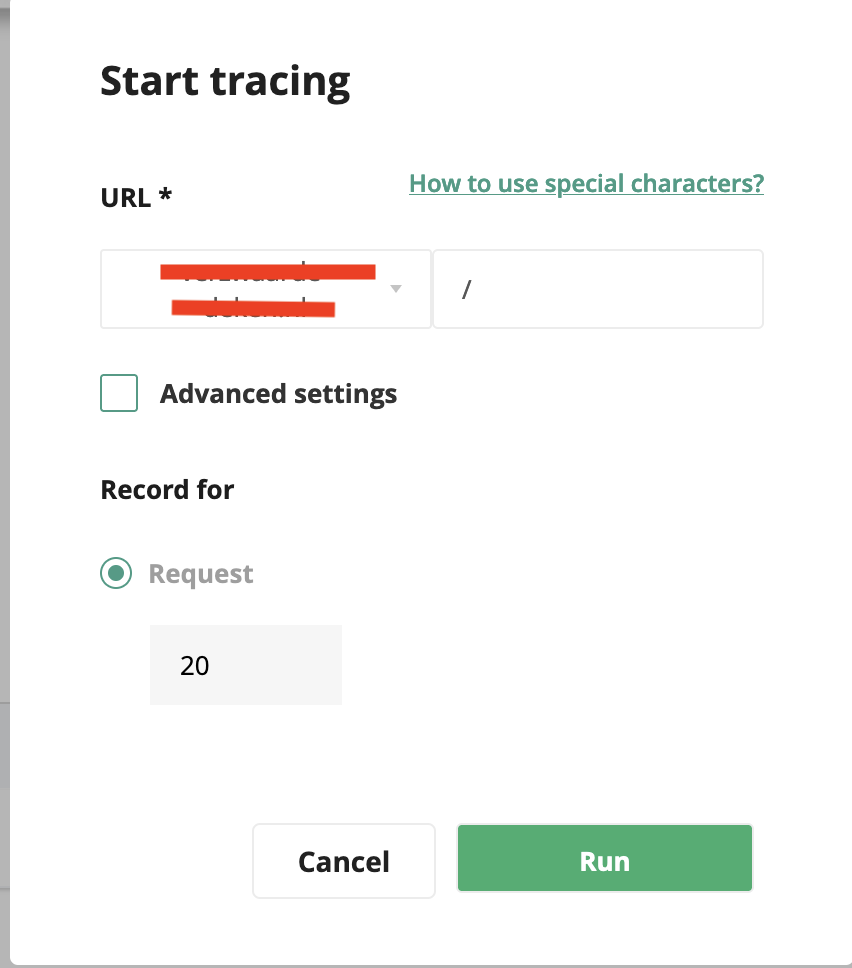
- Once you have created the monitor, visit the site (preferably in a private window) and click around the site for a while to collect information.
Then open PHP X-Ray again and, under Actions, click the eye icon.
- On the next screen you will see all the reports collected. It is best to click the report with the longest load time, as that gives you the most useful information.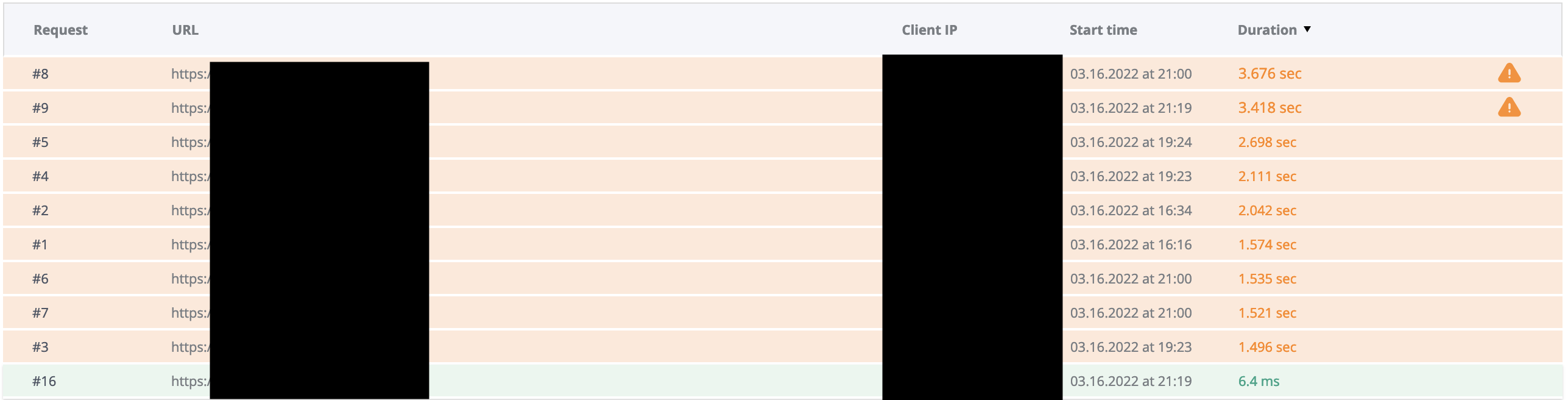
- The overviews marked with the circle contain the most useful information. Here you can see which plugins cause the most load time. You may not find any plugins or modules highlighted in orange here, but a whole lot with a similar load time. This means there are not one or two plugins that are the main culprits, but simply too many plugins in use at the same time to load the site quickly and stably without reaching the limits.
In the example below you can see several plugins that are known for a fairly high server load, mainly Elementor, WooCommerce and jupiterx-core.
Using these plugins together can often lead to poor performance.
How can this be solved?
There are a few basic things that help your website perform as well as possible:
- Use as few plugins as possible and only use the ones you really need.
- Use the LiteSpeed WP Cache plugin; it works very well with our LiteSpeed web servers.
- Choose a hosting package that suits what you need from a hosting package. The website in the example above will not perform very well in a WebHost One package, but will be lightning fast in a WebHost Three package.
You can easily upgrade your hosting package at any time; here you can find out how: https://mijn.weboke.nl/kennisbank/168
For more information on which hosting package we recommend for which type of website, click 'Speed' in the product boxes on this page: https://www.weboke.nl/webhosting
Of course, our support team is always available for advice too.